Hiding the buttons in Cognos Viewer

Remember the buttons in Cognos Viewer that let you change the format, or save a report when a report is run?  In some cases it's better to hide these buttons.  For security reasons for example, or when integrating in another application.

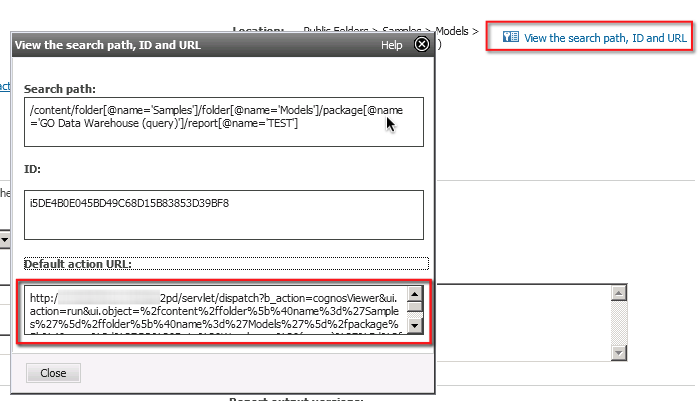
First get the URL of the report from Cognos Connection.  It's that URL that you wanna use to integrate in the external application.  You can do this by clicking the properties in the report, and choosing "View the path, ID & URL" in the right top corner.  Copy out the URL.


Next you want to edit the URL in order to hide the header and toolbar.

There's a simple way to hide this.  Just add the following string at the end of the URL :

&cv.header=false&cv.toolbar=false

Simple as that!


Tip : avoiding a line drops to the bottom in a combination chart with missing data

Sometimes, when creating a combination chart, you've got columns combined with a line chart.  When setting out the x-axis as a timeline with years or months for example, it sometimes happens that there's no data for a certain time period, for example in the future.

In that case, the column disappears, but the line suddenly drops to the bottom, as in the screenshot below.


That isn't so pretty.  Things get worse when there are even more years or months in the future where you see a flat line at the bottom of the graph.

Wouldn't it be good to let the line stop all together just as the column does, thereby losing the drop.

Turns out that's easy.  Just make sure that the value isn't 0, but "null" using an expression kind of like the following :


The result is something like this : 


Did you know... it's easy to install Cognos Express and its modules

IBM Cognos Express is a solution for the mid-market which offers a full range of features such as reporting, dash boarding, planning, what-if-analysis, etc...

Installing IBM Cognos Express is very easy.  Just follow the "next-next-finish" wizard.  It automatically creates all of the necessary components in order to get started.

In essence, IBM Cognos Express consists out of 4 modules :
  • Advisor (which is deprecated from version 10.2.1)
  • Planner
  • Reporter
  • Xcelerator

After installation, however, no modules are installed by default.  The administrator can choose to install them from the "IBM Cognos Express Manager", an web-based administration module, other than the standard Administration module in Cognos Connection.  Installing a module is as easy as clicking the "install" button on each of the separate modules, as depicted below.


Cognos Sharepoint integration

When deploying IBM Cognos in large or mid-sized companies often means it replaces an existing BI solution.  Companies of that size often already have intranet or document management solutions, and in some cases that might be the Microsoft solution : Sharepoint.

As part of the Microsoft BI suite, Sharepoint might be very well integrated in the company, and users are often reluctant to be relying on more than 1 portal to get the information they want.

In an effort to combine both technologies, IBM Cognos provides so called "Web Parts" for Microsoft Sharepoints.  These web parts can be deployed to the Sharepoint server, and can be integrated in the existing portal solution.

Implementing the integration is not so straight-forward.  There are several steps to follow such as

  • Setting up IIS
  • Copying the web parts found in the IBM Cognos installation directory
  • Setting up a security trust
  • Modifying a web.config file
  • Edit the web parts catalog file
  • Implementing SSO in IBM Cognos
  • Configuring the portal services
  • Setting up the Cognos Application Firewall (CAF)
  • Deploying the solution on Sharepoint
  • And finally, adding a port let to  Sharepoint page
Quite a tall order, but luckily IBM provides an excellent walk-through on DeveloperWorks.  The link to the walk-through can be found below.  

Good luck!


The demise of IBM Cognos Express Advisor

With the release of IBM Cognos Express 10.2.1, IBM announces that it will no longer support the Advisor module, nor the Data Advisor client.

Advisor, also known as Executive Viewer in the full IBM Cognos BI suite offers a whole range of dash boarding capabilities, as well as a good platform for creating financial reporting such as P&L and Balance reports.   With Data Advisor, the fat client application, an end-user was able to create basic cubes.

After the introduction of Cognos Insight, which in fact does the same thing (create TM1 cubes) and create nice dashboards, the use of Data Advisor greatly diminished.

The announcement can be found in the deprecated features of IBM Cognos Express 10.2.1, as found in the URL below.

http://pic.dhe.ibm.com/infocenter/cx/v10r2m1/index.jsp?topic=%2Fcom.ibm.swg.ba.cognos.nf_exprss.10.2.1.doc%2Fc_nf_exprss_dep.html


BIG Data from IBM : free to try


Hi Folks, 

the guys at IBM offer you a chance to take a look at their BIG data offering first hand.  Just go to the URL below, and you'll be able to get the Quick Start Edition of Infosphere BIG Insights.  You'll need to create your IBM ID to download the virtual machine, but hey that's no hassle.

It's a VMWare image, but there's an option to get the machine in OVF format so you can open it in Virtual Box for example.

Take a look, I will for sure.


Easy iPad configuration for IBM Cognos Mobile


Let's face it.  Mobile BI is booming.  All leading BI vendors are selling their mobile solutions, some successful, others less successful. IBM Cognos has been pushing hard on this terrain, and provides some useful features.  One of those useful features is the ability to pre-configure an iPad.

Often, mobile users are salesmen, or members of upper management.  Chances are that those people are not so IT-minded, and configuring the IBM Cognos mobile application on an iPad, though not difficult, might prove a problem.

Therefore, IBM Cognos provides a feature whereby a link can be sent to a users, either by mail or via chat.  When the users clicks the link from within their iPad, the mobile BI application is configured automatically.  Of course, the user must give a confirmation.

The link can be generated from with in the Administration module in Cognos Connection.  Since Cognos 10.2.1 an extra tab can be found in there.  The contents of the tab looks a bit like the screenshot below.


This screenshot was taken from IBM Cognos Express 10.2.1.

You need to enter a number of variables such as the URL to the correct cognos server and extra features such as pass-through authentication & automatic downloads.  There's also support for a password protecting the configuration URL.

By clicking the "Generate Mobile Configuration Code" button, IBM will generate the URL that can be sent to the users.

Some extra info on the feature can be found in the "Cognos Mobile installation and configuration guide", provided in the IBM Cognos help.  For your convenience I've provided a link below.

http://public.dhe.ibm.com/software/data/cognos/documentation/docs/en/10.2.0.2/ig_mob.pdf

Note that more recent versions of IBM Cognos Mobile might have some more configuration possibilities.

Good luck!