Sometimes you may like to hide some section of a report when running it in Excel/ PDF output format. One way to do this might be to create a render variable based on the ReportOutput() function, and hide the object that way. Some objects, however don't support a render variable.
You can use (Don't Print) class to hide any item in a Cognos report. The (Don't Print) class will exclude the item from the output. Here are the steps to take
- Select the object which you want to hide
- click on Classes property under Properties pane
- Select (Don't Print) class under Global Classes list
- Save and run the report
Tip of the day
Comments in an expression in report studio :
#/*Here are the comments*/#
use it to your advantage!
#/*Here are the comments*/#
use it to your advantage!
Automatically refreshing a report
Hi!
ever wonder how to automatically refresh a report every ...say 3 seconds? Just paste this into a HTML item in your report.
ever wonder how to automatically refresh a report every ...say 3 seconds? Just paste this into a HTML item in your report.
<script>
function reloadthispage()
{
t=setTimeout("promptButtonFinish()",3000);
}
reloadthispage();
</script>
Combination chart as a visualization
Version 10.2.1.4 of IBM Cognos BI brings a new and long awaited chart type as a visualization for consumption in an active report : the combination chart.
Many business users want to use these types of charts as they contain a lot of information combined. Be sure to check it out :
https://www.analyticszone.com/homepage/web/displayMarketplacePage.action#catalog/viz_assets_combination
Many business users want to use these types of charts as they contain a lot of information combined. Be sure to check it out :
https://www.analyticszone.com/homepage/web/displayMarketplacePage.action#catalog/viz_assets_combination
Configuring an apache DS namespace : a pitfall
Apache Directory Server is a great free LDAP alternative. There are number of good tutorials out there on how to configure Apache DS as a security namespace in IBM Cognos Configuration. I won't be repeating all these steps, instead I'll paste a link below.
http://www.cornerstone.com.au/blog/view/installing-apacheds-for-cognos-bi-10-2-1
However, I would like to mention a pitfall when using more recent versions of Apache DS. Most tutorials indicate that "uid" should be configured as unique identifier. In some cases, IBM Cognos Configuration might come up with the error message below when testing the namespace.


http://www.cornerstone.com.au/blog/view/installing-apacheds-for-cognos-bi-10-2-1
However, I would like to mention a pitfall when using more recent versions of Apache DS. Most tutorials indicate that "uid" should be configured as unique identifier. In some cases, IBM Cognos Configuration might come up with the error message below when testing the namespace.
Quite an annoying error message, as it doesn't give you too much detail. Turns out you just have to revert the unique identifier property to its default ("dn") in order to make it work, just like in the screenshot below.
Did you know... you can change the sql of a query in report studio?
In report studio, you typically create queries by dragging the metadata into a query. However, in some cases you're just not satisfied with the SQL that query generates, and you want to go and fiddle with it.
There's an easy way to do so, just click the query you want to edit, and click the "Generated SQL" property. A window pops up that shows you the SQL, and click the "Convert" button at the bottom of the dialog.

In the dialog that follows, just change the query.
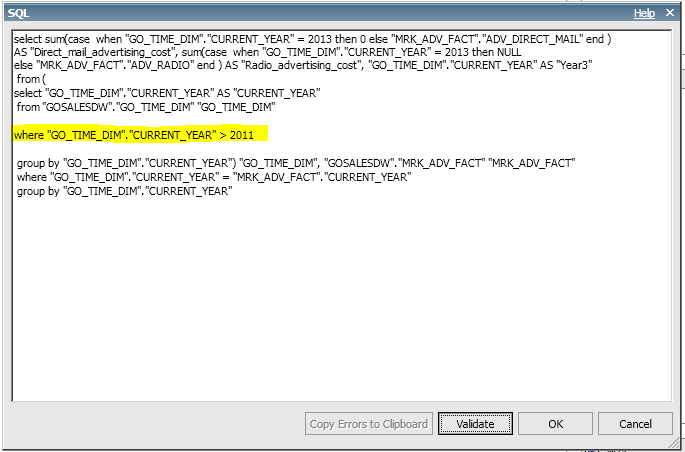
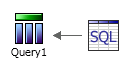
Click OK, and you will see that Report Studio changed the query in to a SQL query object.
There's an easy way to do so, just click the query you want to edit, and click the "Generated SQL" property. A window pops up that shows you the SQL, and click the "Convert" button at the bottom of the dialog.
In the dialog that follows, just change the query.
Click OK, and you will see that Report Studio changed the query in to a SQL query object.
Please note that running SQL directly in your report is a separate capability that can be activated or deactivated in the security settings in Cognos Administration. The same thing can be done with MDX when creating a report on multidimensional data.
The message is : use caution when editing your own query.
Starting a dynamic cube from the command line
Doing maintenance on a dynamic cube in IBM Cognos 10 is quite straight-forward. It's even possible to schedule some maintenance tasks, like stopping and starting a cube, and refreshing the data cache by creating an administrative task in the Administration module, and creating a schedule on top of it.
IBM Cognos Business Intelligence 10.2.1.1 Fix Pack 3 introduces a new and exciting tool called DCAdmin, in which you can do all of these tasks from the command line. This allows an administrator to incorporate starting and stopping dynamic cubes from within another process.
For instance : stop cubes before an ETL load in order to save memory on the server, and starting them again after the ETL has completed. Just one example of how such a tool might come in handy.
You can check out this article on the IBM support site for more information on how to use this tool.
http://www-01.ibm.com/support/docview.wss?uid=swg27040451
Good luck!
IBM Cognos Business Intelligence 10.2.1.1 Fix Pack 3 introduces a new and exciting tool called DCAdmin, in which you can do all of these tasks from the command line. This allows an administrator to incorporate starting and stopping dynamic cubes from within another process.
For instance : stop cubes before an ETL load in order to save memory on the server, and starting them again after the ETL has completed. Just one example of how such a tool might come in handy.
You can check out this article on the IBM support site for more information on how to use this tool.
http://www-01.ibm.com/support/docview.wss?uid=swg27040451
Good luck!
A word of caution when it comes to performance with BigInsights
Eventhough IBM BigInsights is a great platform to handle loads of data in different formats, connecting to Hive via IBM Business Intelligence deserves a word of caution. IBM clearly states the following :
Quote :
The architecture of Hive is better suited for large query processing than handling many light queries because the set up time for a query is significantly higher compared to the most popular RDBMS. Therefore, consider scheduling pre-authored reports when ah-hoc analysis is not absolutely necessary. Scheduling reports in batches will benefit from Cognos Business Intelligence query service's cache management system, minimizing the amount of data that is fetched from BigInsights and significantly reducing report execution times.
If interactivity is required on large volumes of data, consider whether the analysis requirements can be met by scheduling Cognos Active Reports. If ad-hoc analysis is required, educate business users on how to perform multiple operations with a single drag-and-drop gesture. (Modelers should consider adding stand-alone filters and calculations to the package so that multi-click operations to define the filters/calculations can be avoided.)
What to conclude? Ad-Hoc reporting is a big nono. You shouldn't expect Hive to have blazing performance when reporting on top of it. That's especially true when there's only a limited amount of nodes serving the data. Luckily IBM Cognos BI offers a range of possibilities in this respect as mentioned in the article in the URL below.
RSV-VAL-0010 Error Message
Just a quick post today.
RSV-VAL-0010 : This error message is really quite a general error message with which you don't get too much information. There are some posts on this on the net, but my experience is, it's mostly a query still that's still in the list of query's in your report that still points to metadata that is no longer there.
Especially when using dynamic query mode.
Check those query's!
RSV-VAL-0010 : This error message is really quite a general error message with which you don't get too much information. There are some posts on this on the net, but my experience is, it's mostly a query still that's still in the list of query's in your report that still points to metadata that is no longer there.
Especially when using dynamic query mode.
Check those query's!
Configuring a server timezone
In large scale installations that are deployed world-wide, an IBM Cognos configuration might support a topology that supports 1000s of users in different time zones. There would typically be a lot of dispatchers serving the reports.
But what with schedules for example? When you schedule some report to be sent as 2 P.M., which time zone is it? This is something that can be specified as a setting in IBM Cognos Configuration.
Open IBM Cognos Configuration, and from the "actions" menu, click "Edit Global Configuration". You can find the server time zone in the "General" tab.
Click Save, and restart the dispatchers to apply the setting.

But what with schedules for example? When you schedule some report to be sent as 2 P.M., which time zone is it? This is something that can be specified as a setting in IBM Cognos Configuration.
Open IBM Cognos Configuration, and from the "actions" menu, click "Edit Global Configuration". You can find the server time zone in the "General" tab.
Click Save, and restart the dispatchers to apply the setting.
Report Studio Tip : Finding out which object use a certain conditional style
It's often unclear which objects (for instance columns in a list) use a conditional style. You could go and inspect the property of every single column in every list, but that's quite cumbersome.
Turns out you can just search for them. Just go to the "Edit" menu in report studio, and select the "Find" menu item.

In the dialog, just select "Objects with conditional style" in the "Find what" dropdown, and select the desired conditional style in the dropdown below it. Using the "Find Next" button, you can search for the objects that use that style.

Turns out you can just search for them. Just go to the "Edit" menu in report studio, and select the "Find" menu item.
In the dialog, just select "Objects with conditional style" in the "Find what" dropdown, and select the desired conditional style in the dropdown below it. Using the "Find Next" button, you can search for the objects that use that style.
Did you know... you can also start Cognos Configuration for Cognos Express
When installing Cognos Express, most administrative tasks are done using the IBM Cognos Express Manager. This an online web interface in which you can install modules, create users, but also configure your LDAP & notification settings.
Sometimes, you just want to tweak things some more, and the start menu doesn't allow you to start Cognos Configuration. If you look carefully, it is shipped with the product, but you just have to start it from the file system.
The executable "cogconfigw.exe" is located in the "bin64" folder of your installation directory. By running it as an administrator, you'll be able to edit all of the settings you want.

Have fun!
Sometimes, you just want to tweak things some more, and the start menu doesn't allow you to start Cognos Configuration. If you look carefully, it is shipped with the product, but you just have to start it from the file system.
The executable "cogconfigw.exe" is located in the "bin64" folder of your installation directory. By running it as an administrator, you'll be able to edit all of the settings you want.
Have fun!
IBM Cognos Insight ... check out the tutorial
The guy's at AnalyticsZone.com are so kind to provide us with a tutorial for IBM Cognos Insight... free of charge.
Be sure to check it out !
https://www.analyticszone.com/communities/service/html/communityview?communityUuid=48ab01ca-89ca-4827-890f-f202be87cd81#fullpageWidgetId%3DWa9873894cc3e_43af_8a62_a89ee7ee01d4%26file%3D4a0e892c-0033-486b-937a-6946ce2c4fbb
Be sure to check it out !
https://www.analyticszone.com/communities/service/html/communityview?communityUuid=48ab01ca-89ca-4827-890f-f202be87cd81#fullpageWidgetId%3DWa9873894cc3e_43af_8a62_a89ee7ee01d4%26file%3D4a0e892c-0033-486b-937a-6946ce2c4fbb
IBM Cognos Insight 10.2.2 is there...
With the advent of the new TM1 version 10.2.2, a new version of IBM Cognos Insight is shipped. It contains a lot of bugfixes along with a few new features such as
- support for unbalanced and ragged hierarchies
- undo / redo
- conditional formatting
- ...
check out the full list at the URL below :
Disallow a user to send reports by e-mail
A frequently asked question is to handle situations whereby users start sending report to themselves by e-mail. There are situations where some reports take some time to run, and the user wants to run the report for a number of prompt values, for example : a report per customer, etc...
Typically, the user will not wait for the output to come, and run the report with "run with options", and go and send the report to himself by e-mail. He does this for every customer in sequence, and just waits for the mails. Great solution from his point of view. For an administrator, this is hell. Not only will it clog up the Cognos servers, it will also stress the mail servers, having to send a large number of mails with large attachments.
One way of avoiding such situations is disallowing users to send reports to themselves by e-mail.
There are a few ways to do this, none of which is really 100%, but we'll come a long way.
The first way is obviously to remove the notification settings in Cognos Configuration. That's really straight forward, but is usually not an option. It means that nothing will be able to send anything, even jobs that are meant to send e-mail.
There are a few options for a user to send himself a report.
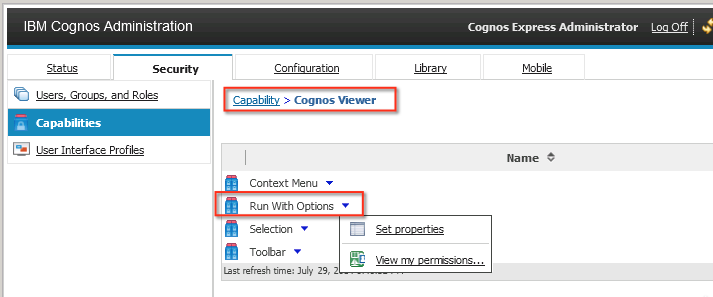

When a users starts Cognos Connection, he will effectively lose the option to "Run with options".

The solution above has one big disadvantage : the user will also no longer be able to select one of the other options, such as running in a specific format, or a specific language.
When a user runs a report, he has the option to send the report to himself using the "Keep this version" option.

You can hide this option, but it isn't done in the interface. Instead you need to edit the "system.xml" file, which is located in your installation directory under \templates\ps\portal.
The only thing you need to do is add the following tags, and restart the server :
<param name="ui_hide">!
! <RV_TOOLBAR_BUTTONS_KEEP_THIS_VERSION show="Administrators"/>!
</param>!

The configuration above will only show the option to administrators and effectively hide the option in the Cognos Viewer for all other users. You can also use another group to restrict things, but that's a bit more complicated. The link below gives you a good explanation on how to do this :
http://pic.dhe.ibm.com/infocenter/cfpm/v10r1m0/index.jsp?topic=
%2Fcom.ibm.swg.im.cognos.ug_cra.10.1.0.doc
%2Fug_cra_id36310CustomizetheUserInterfaceBasedonGroupandR.html
A quick tip: please make a backup of the original file, just to make sure.
The last thing a user can do is select a different delivery method when waiting for a report. Removing this option is really quite tricky, and not so neat.
In essence, you'll be telling cognos that the actual text to display on this dialog is "empty". By doing so, hiding the option. The steps on how to do this are neatly explained in the URL below.
http://www-01.ibm.com/support/docview.wss?uid=swg21344292
A big disadvantage here, is that the solution applies to everyone. This means, also administrators won't be able to do so anymore.
Hope this helps!
Typically, the user will not wait for the output to come, and run the report with "run with options", and go and send the report to himself by e-mail. He does this for every customer in sequence, and just waits for the mails. Great solution from his point of view. For an administrator, this is hell. Not only will it clog up the Cognos servers, it will also stress the mail servers, having to send a large number of mails with large attachments.
One way of avoiding such situations is disallowing users to send reports to themselves by e-mail.
There are a few ways to do this, none of which is really 100%, but we'll come a long way.
The first way is obviously to remove the notification settings in Cognos Configuration. That's really straight forward, but is usually not an option. It means that nothing will be able to send anything, even jobs that are meant to send e-mail.
There are a few options for a user to send himself a report.
- Using "run with options" from Cognos Connection
- Choosing "keep this version" in the Cognos Viewer after running a report
- Selecting a different delivery method when the report is running, and the dialog with the hourglass is showing.
Click the "Properties" option, and in the dialog that follows, click the "Permissions" tab. In the screenshot below, all permissions are revoked from non-administrative users, but you can choose to create you own group, and explicitly deny all rights for users in that group.
When a users starts Cognos Connection, he will effectively lose the option to "Run with options".
When a user runs a report, he has the option to send the report to himself using the "Keep this version" option.
You can hide this option, but it isn't done in the interface. Instead you need to edit the "system.xml" file, which is located in your installation directory under \templates\ps\portal.
The only thing you need to do is add the following tags, and restart the server :
<param name="ui_hide">!
! <RV_TOOLBAR_BUTTONS_KEEP_THIS_VERSION show="Administrators"/>!
</param>!
The configuration above will only show the option to administrators and effectively hide the option in the Cognos Viewer for all other users. You can also use another group to restrict things, but that's a bit more complicated. The link below gives you a good explanation on how to do this :
http://pic.dhe.ibm.com/infocenter/cfpm/v10r1m0/index.jsp?topic=
%2Fcom.ibm.swg.im.cognos.ug_cra.10.1.0.doc
%2Fug_cra_id36310CustomizetheUserInterfaceBasedonGroupandR.html
A quick tip: please make a backup of the original file, just to make sure.
The last thing a user can do is select a different delivery method when waiting for a report. Removing this option is really quite tricky, and not so neat.
In essence, you'll be telling cognos that the actual text to display on this dialog is "empty". By doing so, hiding the option. The steps on how to do this are neatly explained in the URL below.
http://www-01.ibm.com/support/docview.wss?uid=swg21344292
A big disadvantage here, is that the solution applies to everyone. This means, also administrators won't be able to do so anymore.
Hope this helps!
Which OLAP technology to choose
IBM currently offers 4 different OLAP technologies, all of which offer a specific range of applications :
A transformer power cube is a technology that has been around for a long time. It served it purpose back in the times of Powerplay, but still does today. Administrators are still able to create transformer cubes, and create a package on them in Framework Manager. Transformer are very fast, but have a few drawbacks however. The most important ones are the sizing (2GB is really the maximum, so not too many members is the message), the fact that the cube has to be processed overnight and the missing feature on member attributes.
DMR (Dimensionally modeled relation) is a technology that allows a Framework Manager modeler to create a dimensional model above a relational model created in Framework Manager. This is especially useful if your data contains too many distinct members (so a power cube would grow too large), but not too much data (as all queries are translated into SQL statements).
TM1 is a product that has been acquired by IBM some time ago already. It's an in-memory tool that allows you to write back data to the cube. IBM doesn't really advise doing a lot of reporting on top of a TM1 cube, but it's great to make a planning application for example. Dit you know that IBM Cognos Insight makes a simple TM1 cube underneath the hood when you drag an excel file into the application?
Dynamic Cubes are the most recent addition to the OLAP repertoire of IBM. This is also an in-memory technology that focusses on analysis of really large datasets. I'm talking TB's here. There are of course some hardware requirements involved here, but it's well worth the investment. Creating dynamic cubes on small datasets is overkill, for small sets of data you'd be better of creating a power cube or DMR model.
Hope this helps in making your choice.
Cheers!
- Transformer Power Cube
- DMR model via Framework Manager
- TM1
- Dynamic Cubes
A transformer power cube is a technology that has been around for a long time. It served it purpose back in the times of Powerplay, but still does today. Administrators are still able to create transformer cubes, and create a package on them in Framework Manager. Transformer are very fast, but have a few drawbacks however. The most important ones are the sizing (2GB is really the maximum, so not too many members is the message), the fact that the cube has to be processed overnight and the missing feature on member attributes.
DMR (Dimensionally modeled relation) is a technology that allows a Framework Manager modeler to create a dimensional model above a relational model created in Framework Manager. This is especially useful if your data contains too many distinct members (so a power cube would grow too large), but not too much data (as all queries are translated into SQL statements).
TM1 is a product that has been acquired by IBM some time ago already. It's an in-memory tool that allows you to write back data to the cube. IBM doesn't really advise doing a lot of reporting on top of a TM1 cube, but it's great to make a planning application for example. Dit you know that IBM Cognos Insight makes a simple TM1 cube underneath the hood when you drag an excel file into the application?
Dynamic Cubes are the most recent addition to the OLAP repertoire of IBM. This is also an in-memory technology that focusses on analysis of really large datasets. I'm talking TB's here. There are of course some hardware requirements involved here, but it's well worth the investment. Creating dynamic cubes on small datasets is overkill, for small sets of data you'd be better of creating a power cube or DMR model.
Hope this helps in making your choice.
Cheers!
Hiding the buttons in Cognos Viewer
Remember the buttons in Cognos Viewer that let you change the format, or save a report when a report is run? In some cases it's better to hide these buttons. For security reasons for example, or when integrating in another application.
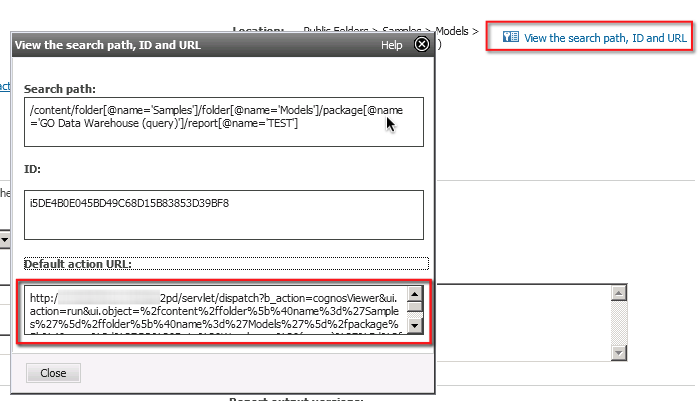
First get the URL of the report from Cognos Connection. It's that URL that you wanna use to integrate in the external application. You can do this by clicking the properties in the report, and choosing "View the path, ID & URL" in the right top corner. Copy out the URL.
Next you want to edit the URL in order to hide the header and toolbar.
There's a simple way to hide this. Just add the following string at the end of the URL :
&cv.header=false&cv.toolbar=false
Simple as that!
First get the URL of the report from Cognos Connection. It's that URL that you wanna use to integrate in the external application. You can do this by clicking the properties in the report, and choosing "View the path, ID & URL" in the right top corner. Copy out the URL.
Next you want to edit the URL in order to hide the header and toolbar.
There's a simple way to hide this. Just add the following string at the end of the URL :
&cv.header=false&cv.toolbar=false
Simple as that!
Tip : avoiding a line drops to the bottom in a combination chart with missing data
Sometimes, when creating a combination chart, you've got columns combined with a line chart. When setting out the x-axis as a timeline with years or months for example, it sometimes happens that there's no data for a certain time period, for example in the future.
In that case, the column disappears, but the line suddenly drops to the bottom, as in the screenshot below.

That isn't so pretty. Things get worse when there are even more years or months in the future where you see a flat line at the bottom of the graph.
Wouldn't it be good to let the line stop all together just as the column does, thereby losing the drop.
Turns out that's easy. Just make sure that the value isn't 0, but "null" using an expression kind of like the following :


In that case, the column disappears, but the line suddenly drops to the bottom, as in the screenshot below.
That isn't so pretty. Things get worse when there are even more years or months in the future where you see a flat line at the bottom of the graph.
Wouldn't it be good to let the line stop all together just as the column does, thereby losing the drop.
Turns out that's easy. Just make sure that the value isn't 0, but "null" using an expression kind of like the following :
The result is something like this :
Did you know... it's easy to install Cognos Express and its modules
IBM Cognos Express is a solution for the mid-market which offers a full range of features such as reporting, dash boarding, planning, what-if-analysis, etc...
Installing IBM Cognos Express is very easy. Just follow the "next-next-finish" wizard. It automatically creates all of the necessary components in order to get started.
In essence, IBM Cognos Express consists out of 4 modules :
After installation, however, no modules are installed by default. The administrator can choose to install them from the "IBM Cognos Express Manager", an web-based administration module, other than the standard Administration module in Cognos Connection. Installing a module is as easy as clicking the "install" button on each of the separate modules, as depicted below.


Installing IBM Cognos Express is very easy. Just follow the "next-next-finish" wizard. It automatically creates all of the necessary components in order to get started.
In essence, IBM Cognos Express consists out of 4 modules :
- Advisor (which is deprecated from version 10.2.1)
- Planner
- Reporter
- Xcelerator
After installation, however, no modules are installed by default. The administrator can choose to install them from the "IBM Cognos Express Manager", an web-based administration module, other than the standard Administration module in Cognos Connection. Installing a module is as easy as clicking the "install" button on each of the separate modules, as depicted below.
Cognos Sharepoint integration
When deploying IBM Cognos in large or mid-sized companies often means it replaces an existing BI solution. Companies of that size often already have intranet or document management solutions, and in some cases that might be the Microsoft solution : Sharepoint.
As part of the Microsoft BI suite, Sharepoint might be very well integrated in the company, and users are often reluctant to be relying on more than 1 portal to get the information they want.
In an effort to combine both technologies, IBM Cognos provides so called "Web Parts" for Microsoft Sharepoints. These web parts can be deployed to the Sharepoint server, and can be integrated in the existing portal solution.
Implementing the integration is not so straight-forward. There are several steps to follow such as
As part of the Microsoft BI suite, Sharepoint might be very well integrated in the company, and users are often reluctant to be relying on more than 1 portal to get the information they want.
In an effort to combine both technologies, IBM Cognos provides so called "Web Parts" for Microsoft Sharepoints. These web parts can be deployed to the Sharepoint server, and can be integrated in the existing portal solution.
Implementing the integration is not so straight-forward. There are several steps to follow such as
- Setting up IIS
- Copying the web parts found in the IBM Cognos installation directory
- Setting up a security trust
- Modifying a web.config file
- Edit the web parts catalog file
- Implementing SSO in IBM Cognos
- Configuring the portal services
- Setting up the Cognos Application Firewall (CAF)
- Deploying the solution on Sharepoint
- And finally, adding a port let to Sharepoint page
Quite a tall order, but luckily IBM provides an excellent walk-through on DeveloperWorks. The link to the walk-through can be found below.
Good luck!
Abonneren op:
Posts (Atom)